


Back to Templates
Neon Starter
Next.js starter with Neon serverless Postgres and built-in authentication.

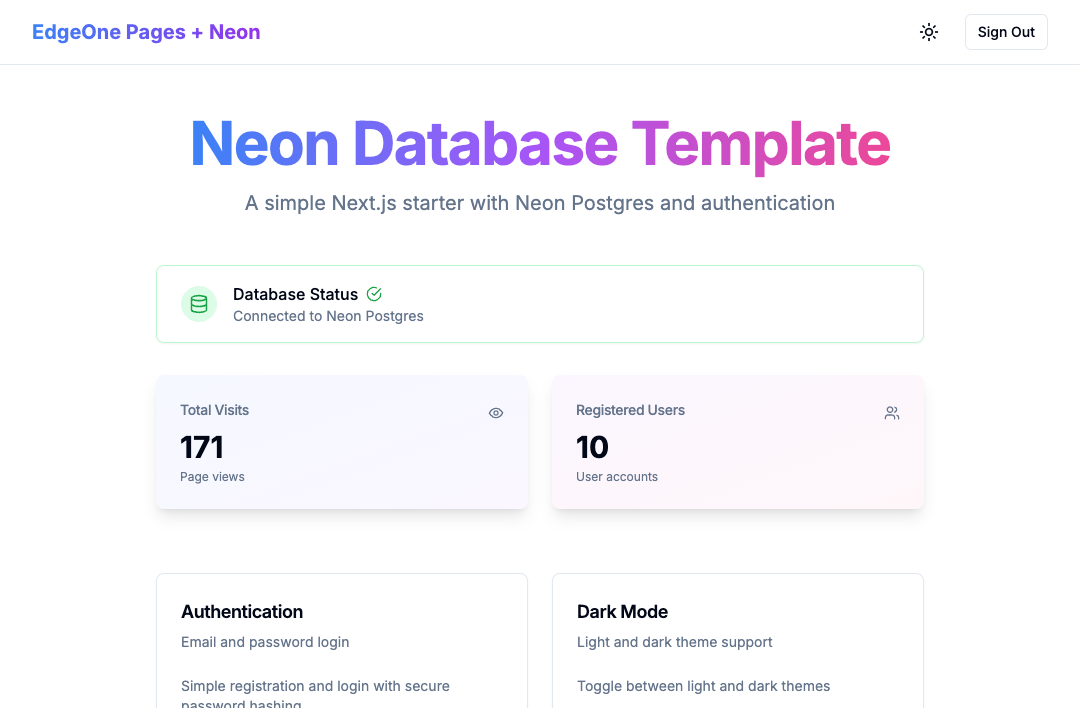
Neon Database Template

A simple Next.js starter with Neon Postgres and authentication.
Features
- Email/password authentication
- Neon Postgres database
- Dark mode support
- Page visit tracking
- User statistics
- Database connection status
Quick Start
1. Create Neon Database
- Go to https://console.neon.tech and sign up
- Create a new project
- Copy the connection string (starts with
postgresql://)
2. Configure Environment
# Copy the example env file
cp .env.example .env

# Edit .env and add your Neon connection string:
DATABASE_URL=postgresql://username:password@host.neon.tech/dbname?sslmode=require
3. Install Dependencies
pnpm install
4. Initialize Database
# Create database tables
pnpm db:init
This will create:
userstable - stores user accountspage_visitstable - tracks page statistics
5. Run Development Server
pnpm dev
Available Scripts
| Command | Description |
|---|---|
pnpm dev | Start development server |
pnpm build | Build for production |
pnpm db:init | Initialize database tables |
pnpm db:generate | Generate Drizzle migrations |
pnpm db:push | Push schema changes to database |
pnpm db:studio | Open Drizzle Studio (database GUI) |
Database Schema
The template uses Drizzle ORM with two tables:
users
| Column | Type | Description |
|---|---|---|
| id | SERIAL | Primary key |
| VARCHAR(255) | User email (unique) | |
| password_hash | TEXT | Bcrypt hashed password |
| name | VARCHAR(255) | Optional display name |
| created_at | TIMESTAMP | Account creation time |
| updated_at | TIMESTAMP | Last update time |
page_visits
| Column | Type | Description |
|---|---|---|
| id | SERIAL | Primary key |
| page | VARCHAR(100) | Page identifier |
| count | INTEGER | Visit count |
| last_visit | TIMESTAMP | Last visit time |
One-Click Deploy
Click the button above to deploy this template directly to EdgeOne Pages.
Note: After deployment, you need to configure environment variables in the EdgeOne Pages dashboard.
Manual Deploy
- Push code to Git repository
- Connect repository in EdgeOne Pages dashboard
- Add environment variables:
DATABASE_URL- Your Neon connection stringSESSION_SECRET- A random string (min 32 chars)
- Deploy
Environment Variables
| Variable | Description | Required |
|---|---|---|
DATABASE_URL | Neon Postgres connection string | Yes |
SESSION_SECRET | Secret for session encryption (min 32 chars) | Yes |
NEXT_PUBLIC_APP_URL | App URL (default: http://localhost:3000) | No |
Tech Stack
- Framework: Next.js 14 (App Router)
- Database: Neon Postgres + Drizzle ORM
- Authentication: iron-session
- Styling: Tailwind CSS + shadcn/ui
- Theme: next-themes
Project Structure
neon-starter/
├── app/
│   ├── actions/authActions.ts    # Authentication Server Actions
│   ├── api/logout/route.ts       # Logout API route
│   ├── components/
│   │   ├── ui/                   # UI components (Card, Button, Input, etc.)
│   │   ├── header.tsx            # Navigation header
│   │   └── theme-provider.tsx    # Dark mode provider
│   ├── lib/
│   │   ├── auth.ts               # Session & password utils
│   │   ├── db.ts                 # Database connection
│   │   └── utils.ts              # Helper functions
│   ├── login/page.tsx            # Login page
│   ├── register/page.tsx         # Register page
│   ├── globals.css               # Global styles
│   ├── layout.tsx                # Root layout
│   └── page.tsx                  # Home page
├── db/schema.ts                  # Database schema definition
├── scripts/init-db.ts            # Database initialization script
├── .env.example                  # Environment variables template
├── drizzle.config.ts             # Drizzle ORM configuration
├── edgeone.json                  # EdgeOne Pages deployment config
└── package.json
Troubleshooting
Database not connected
- Check
DATABASE_URLin.envfile - Ensure database tables are created:
pnpm db:init - Verify Neon database is active in console.neon.tech
Session errors
- Ensure
SESSION_SECRETis at least 32 characters - Clear browser cookies and try again